
How do I print a large image across A4 pages?
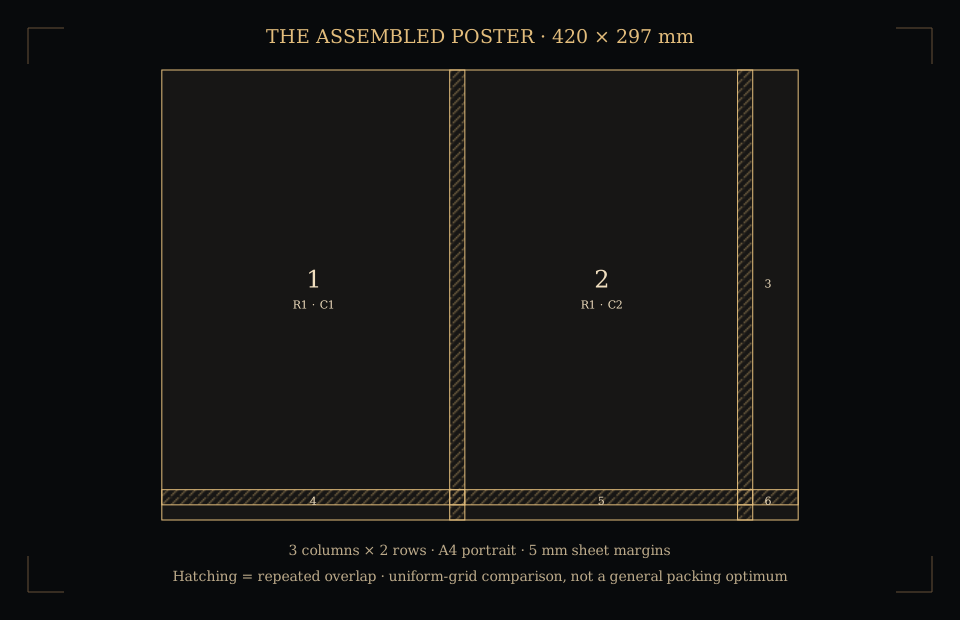
Set the finished poster dimensions, choose A4, then allow for the printer’s margins and duplicated overlap. A 420 × 297 mm poster with 5 mm margins and 10 mm overlap uses four landscape A4 sheets in a 2 × 2 grid. Portrait A4 sheets need six. Print the tiled PDF at Actual size or 100%; applying Fit changes the assembled dimensions.
The tool accepts a PNG, JPEG or still WebP image and prepares the PDF locally. It does not upload your image. If you have no image ready, start with the original four-sheet assembly proof.
Why two nominal A4 sheets can become four or six
A4 portrait is 210 × 297 mm. Two sheets side by side cover a nominal 420 × 297 mm A3 landscape rectangle. That two-sheet construction assumes zero printer margins and zero overlap. Many printers cannot reproduce it edge to edge.
With 5 mm margins on each edge, a portrait A4 sheet has a mathematical printable rectangle of 200 × 287 mm. A 10 mm overlap leaves a stride of 190 mm across and 277 mm down. Two columns cover only 390 mm; one row covers only 287 mm. The poster therefore needs three columns and two rows: six sheets.
Rotate the sheets. Landscape A4 is 297 × 210 mm; subtracting the same margins leaves 287 × 200 mm, with a stride of 277 × 190 mm. Two columns and two rows now cover the poster: four sheets.
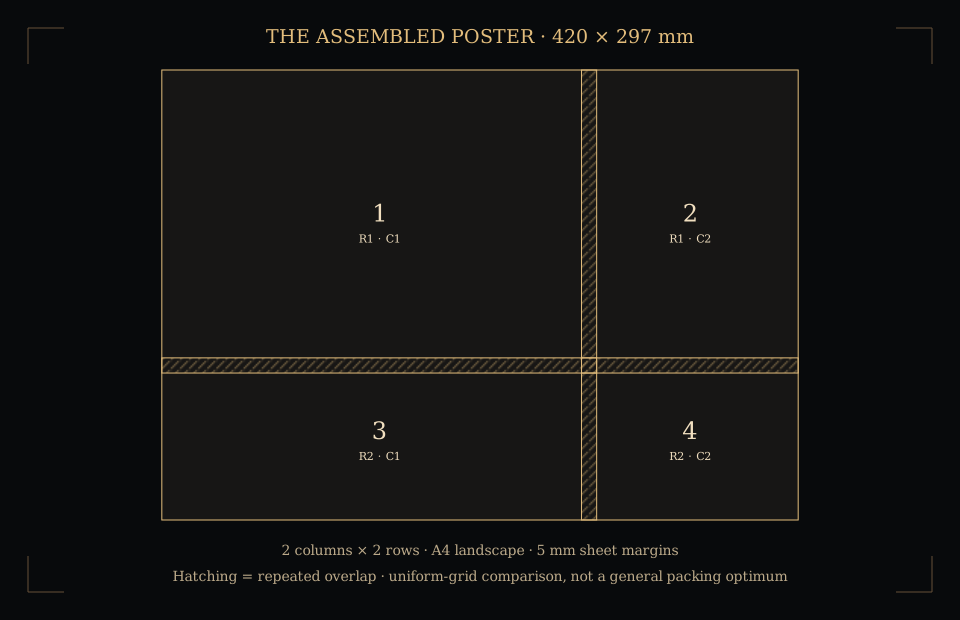
The comparison finds the smaller of these two uniform grids. It does not prove a minimum over every possible mixed-orientation arrangement. Margins still need to match your printer.
Print and assemble without changing scale
- Choose the finished size. Enter the width and height of the assembled image. Keep the selected image’s proportions unless stretching is deliberate. An image 3000 pixels wide spread over 420 mm provides about 181.4 PPI across the poster; export cannot invent extra detail.
- Choose the actual sheet stock. Select A4, US Letter or A3. Allow for the printer’s unprintable border. The tool cannot detect a driver’s usable area or a borderless enlargement setting.
- Add overlap. The overlap is repeated image content shared by neighbouring tiles. It is not extra finished poster size and is separate from the sheet margin.
- Download the tiled PDF. With an image selected, the PDF carries that image. Without one, it carries a labelled geometric proof. The assembly map is a reduced diagram, not a full-size printing template.
- Use Actual size or 100%. Choose the planned paper and orientation in a PDF application that offers exact scaling. Check its preview. The PDF requests no automatic scaling, but an application or printer can still alter the output.
- Test one sheet. Measure the proof’s known gauge, or use the separate calibration sheet. A correct document size does not establish what a printer produced.
- Align the repeated image. Work from the top-left tile in row order. Trim the white margin on adjoining edges as needed, match the repeated overlap and attach from the back. Keep the outer finished poster boundary; blank space beyond the final tile’s artwork is not part of the design.
Assembly labels and cut marks sit in the margins. The exporter omits them when the requested margin is less than 4 mm, where there is too little room. Marks in a reserved margin can still fall inside a printer’s unprintable border; allow more room if those marks must appear. Zero overlap is allowed, but edge-to-edge alignment can be difficult.
PDF page boxes can explain why an existing document’s displayed size differs from its trim. This image tiler does not import an existing PDF or emulate every application’s Poster print dialogue.
The tiling calculation
Let P be one sheet’s dimension, m its margin on each edge, o the overlap, and A the poster dimension on that axis.
Printable span U = P − 2m
Tile stride S = U − o
Tile count N = 1, when A ≤ U
Otherwise N = 1 + ceil((A − U) ÷ S)
Repeat the calculation for width and height, then multiply columns by rows. A tile at column c and row r, counted from zero, starts at x = cSₓ, y = rSᵧ in the poster. The final source region is clipped to the poster’s remaining width and height. Extra blank paper beyond that edge does not enlarge the finished image.
For the four-sheet example, source origins are [0, 0], [277, 0], [0, 190] and [277, 190] mm. Source regions measure 287 × 200, 143 × 200, 287 × 107 and 143 × 107 mm respectively. The repeated bands remain 10 mm wide.
Six constructions you can reproduce
Each example compares two uniform grids using the same source dimensions and allowances. These are calculated constructions, not physical printing results or measured search demand.
| Poster and allowances | Portrait sheets | Landscape sheets | Automatic selection |
|---|---|---|---|
| A3 landscape, no allowances | 2 | 4 | 2 · portrait |
| A3 landscape, 5 mm margins and 10 mm overlap | 6 | 4 | 4 · landscape |
| A3 portrait, 5 mm margins and 10 mm overlap | 4 | 6 | 4 · portrait |
| A2 portrait, 5 mm margins and 10 mm overlap | 9 | 8 | 8 · landscape |
| 600 × 400 mm poster with allowances | 8 | 9 | 8 · portrait |
| 17 × 22 inch poster, no allowances | 4 | 6 | 4 · portrait |
Download full coordinates and assumptions as JSON or download the comparison CSV. The four-page A3-on-A4 proof PDF is the same constructed example used above.
Sources, authorship and limits
Paper & Scale authored the diagrams, proof document, tiling engine and reproducible calculations. Adobe’s poster and banner printing guide describes tiling, overlap, labels and cut marks. Adobe’s page-size guidance explains Actual size and Fit, while its image resolution guidance connects pixel dimensions and print size.
The tool normalises the browser-decoded image to PNG pixels without resizing. Browser colour conversion and PDF viewing are not a colour-managed press workflow. It does not inspect colour separations, certify print quality, measure your printer, add image detail or import vector PDF artwork. Personal images and generated PDFs remain local and do not create public pages.